How to create your frame, step by step
Ordering takes eight steps, from choosing your frame on the Create yours page to paying. The screenshots follow one example order: a Highland frame for the London Marathon. For a multi-leg frame, The Scenic, The TopoRoute, Map only or the Keyring, open the Or options under steps 1 and 3 to see what is different. We only need one thing from you: the event or route name, or a way for us to find your route.
Create yoursChoose your frame, layout and colour
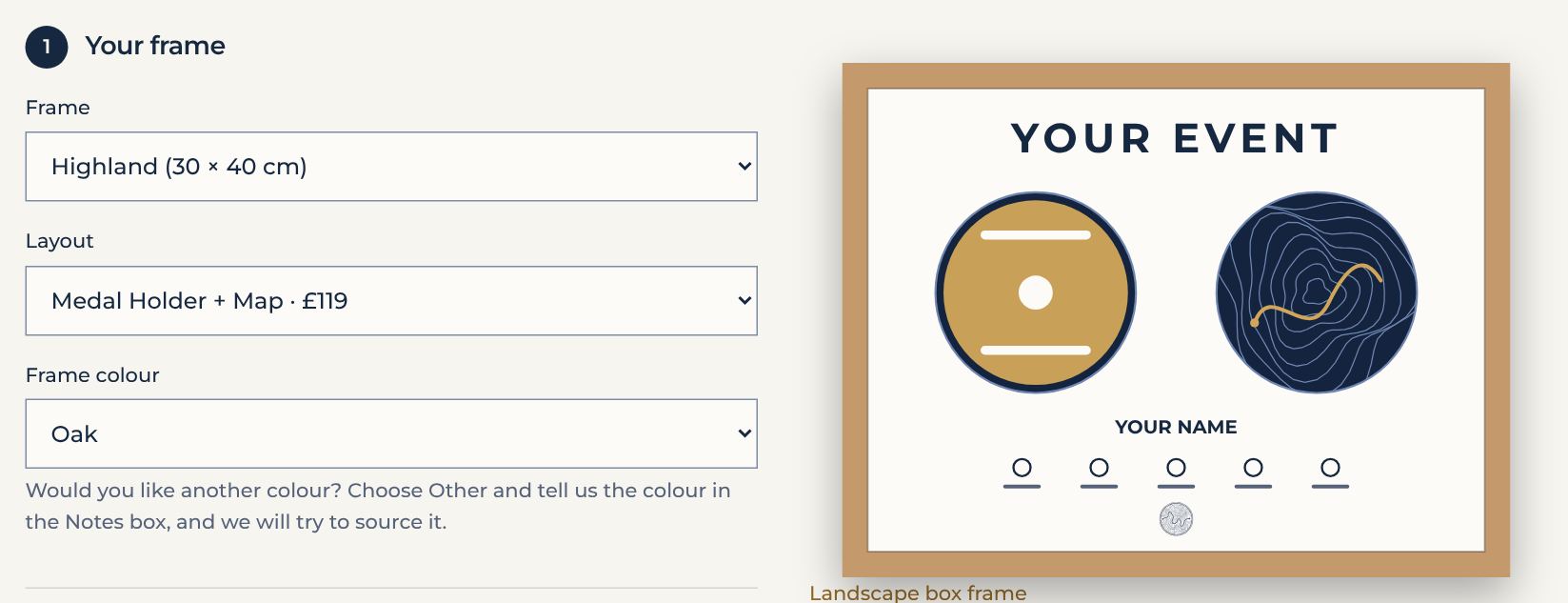
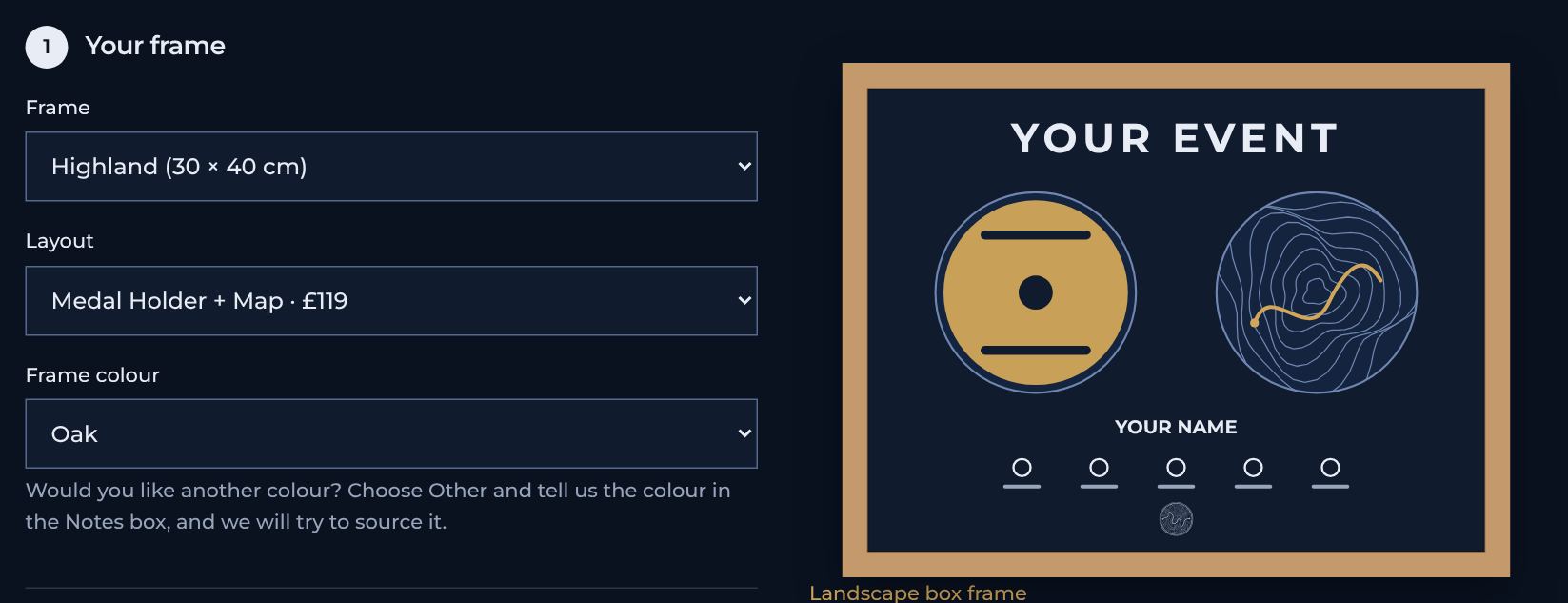
Press Create yours, on this page or in the menu. In the Frame menu, choose one of our five framed collections: Foothill, Highland, Pinnacle, The Scenic or The TopoRoute. For a map with no frame, choose Map only or the Keyring. Then choose a layout. The layout decides what goes inside the frame, such as a medal holder, a map, photos or your bib number, and the menu shows its price. Last, choose the frame colour: oak, black, white or walnut. All four cost the same, and the picture changes to show your choice. For another colour, choose Other and tell us the colour you would like in the Notes box in step 3. We will try to source it.
Or, for a multi-leg frame
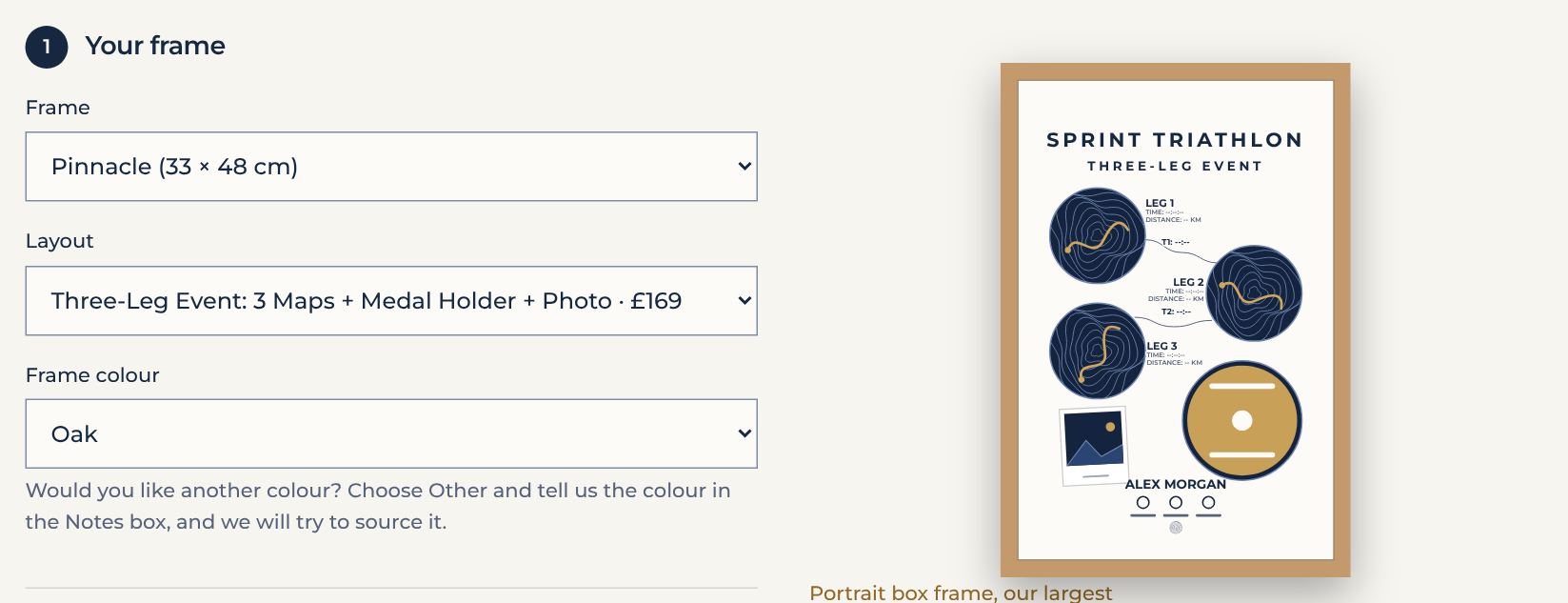
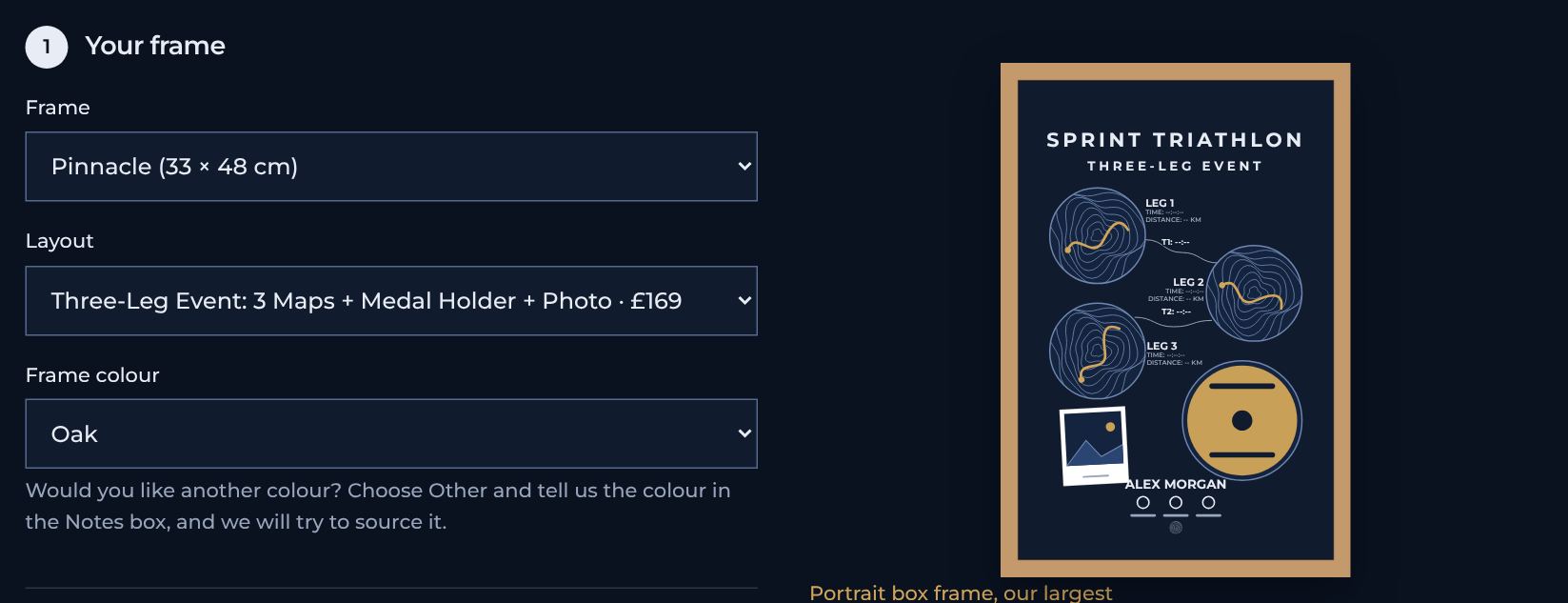
Choose Pinnacle, then a layout with three, four or five legs, for a triathlon or another multisport event. Each leg has its own 10 cm map. On three and four legs, you can choose photos in place of the medal holder.
Or, for The Scenic
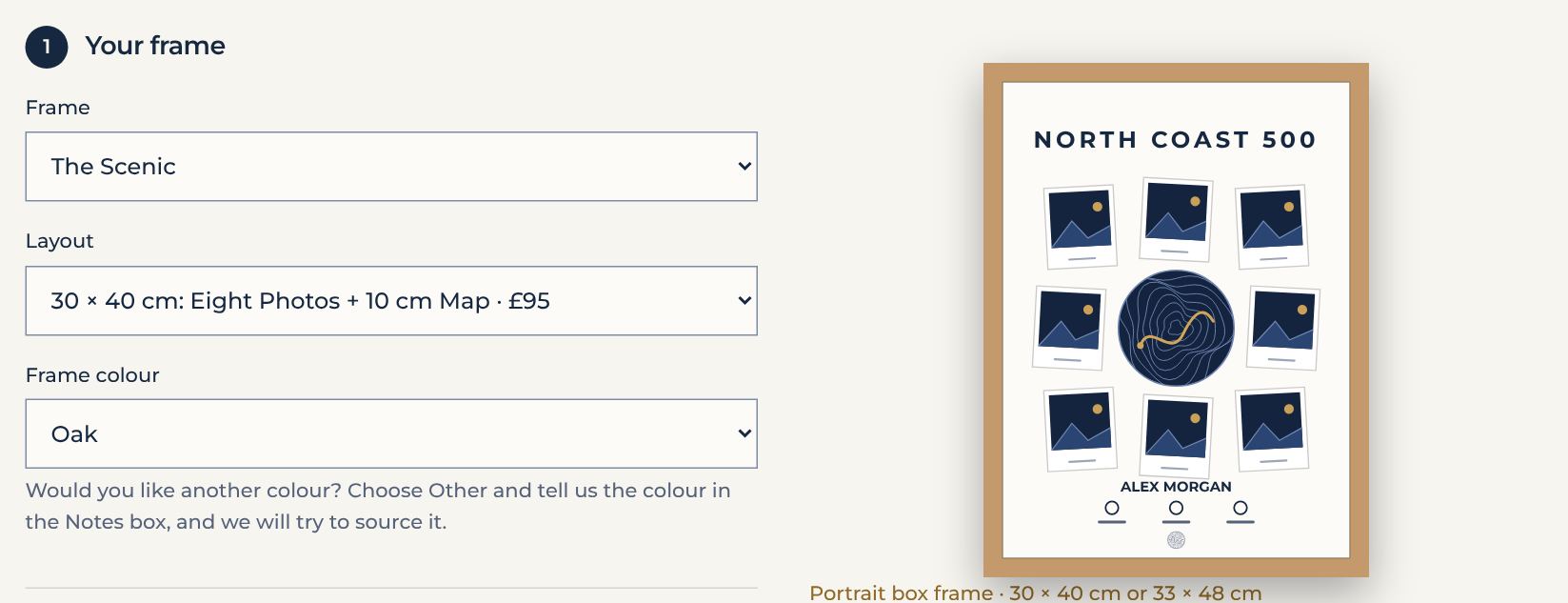
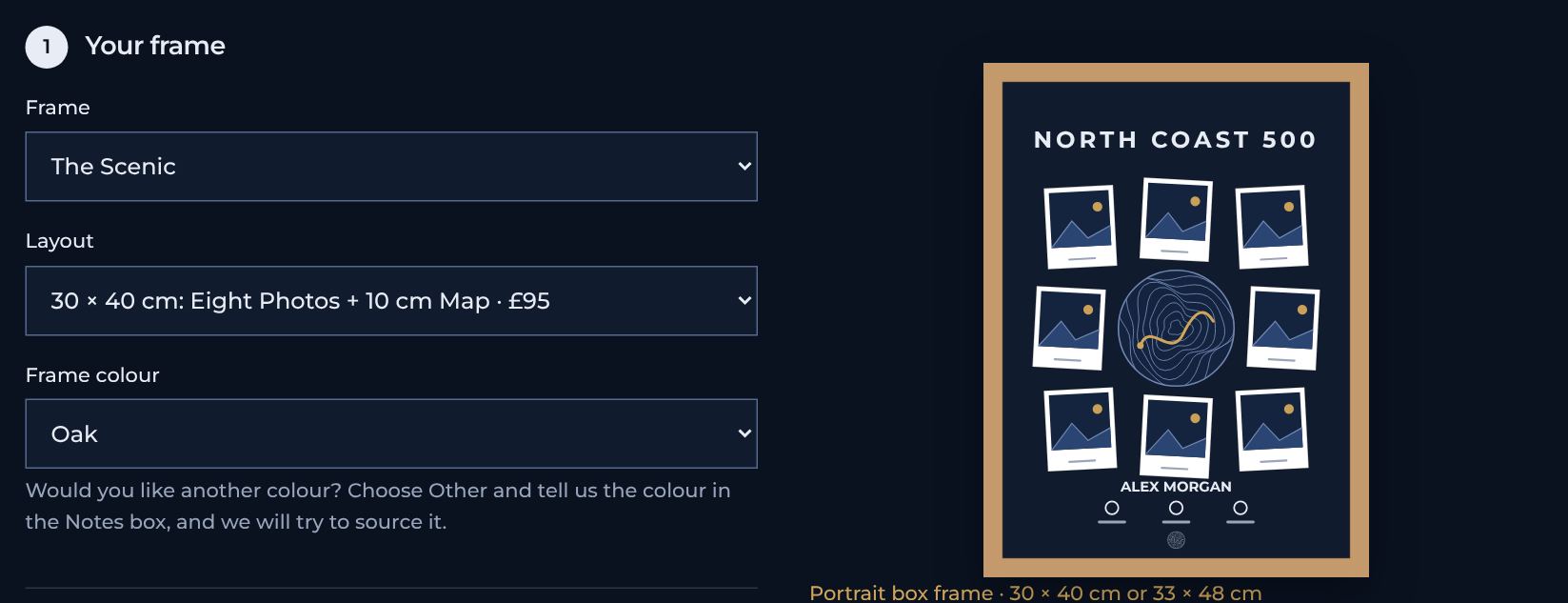
Choose The Scenic, then the 30 × 40 cm or the 33 × 48 cm layout. Both have eight of your photos, polaroid style, around a 3D map of your route.
Or, for The TopoRoute
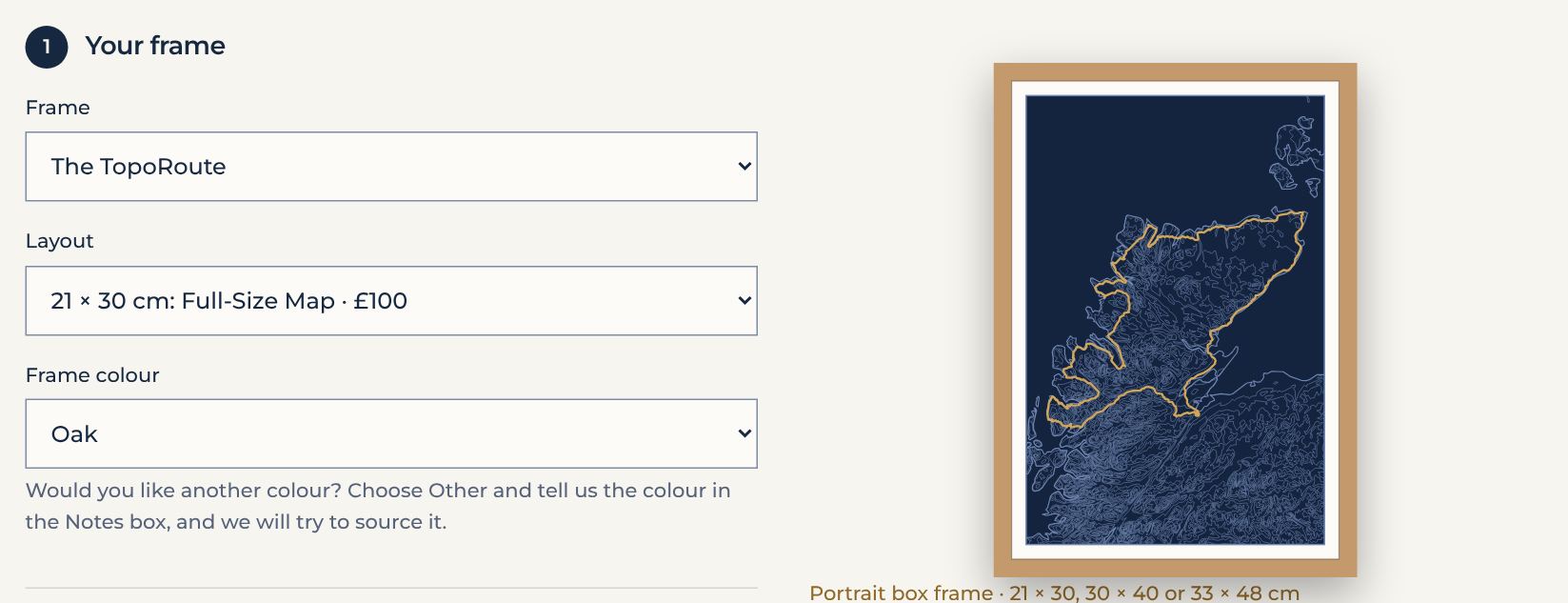
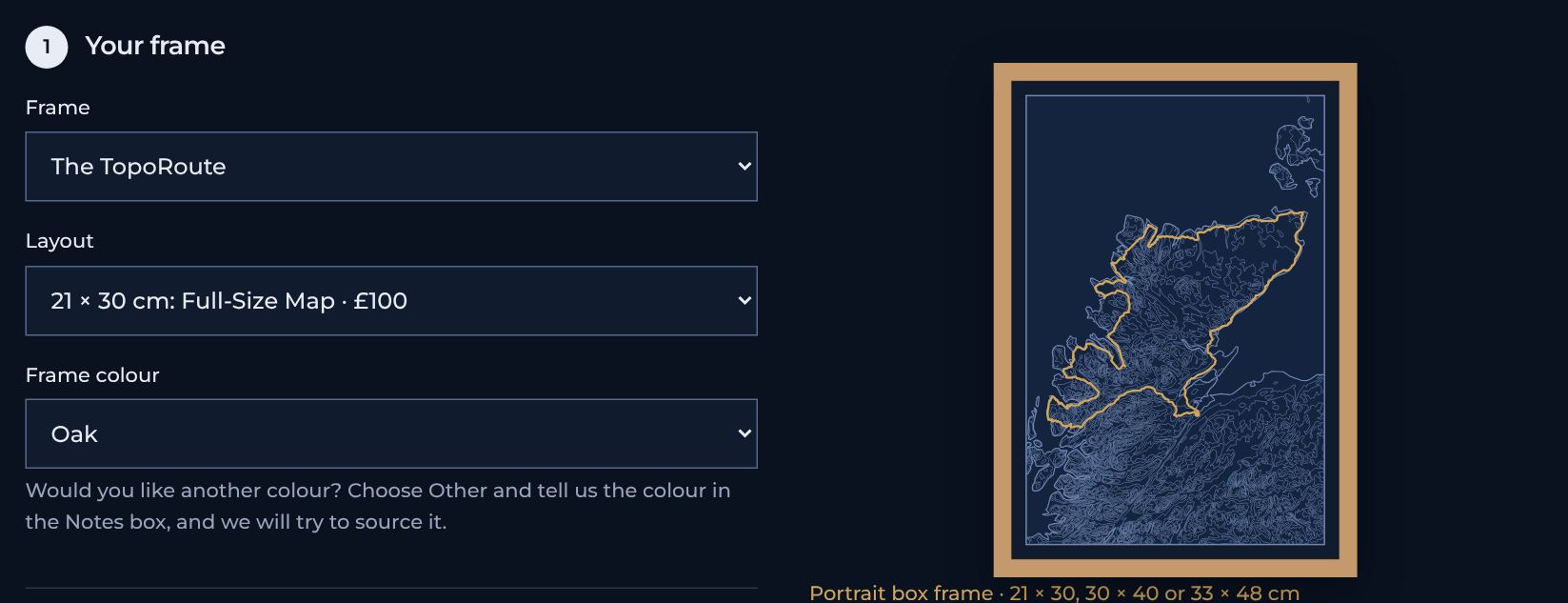
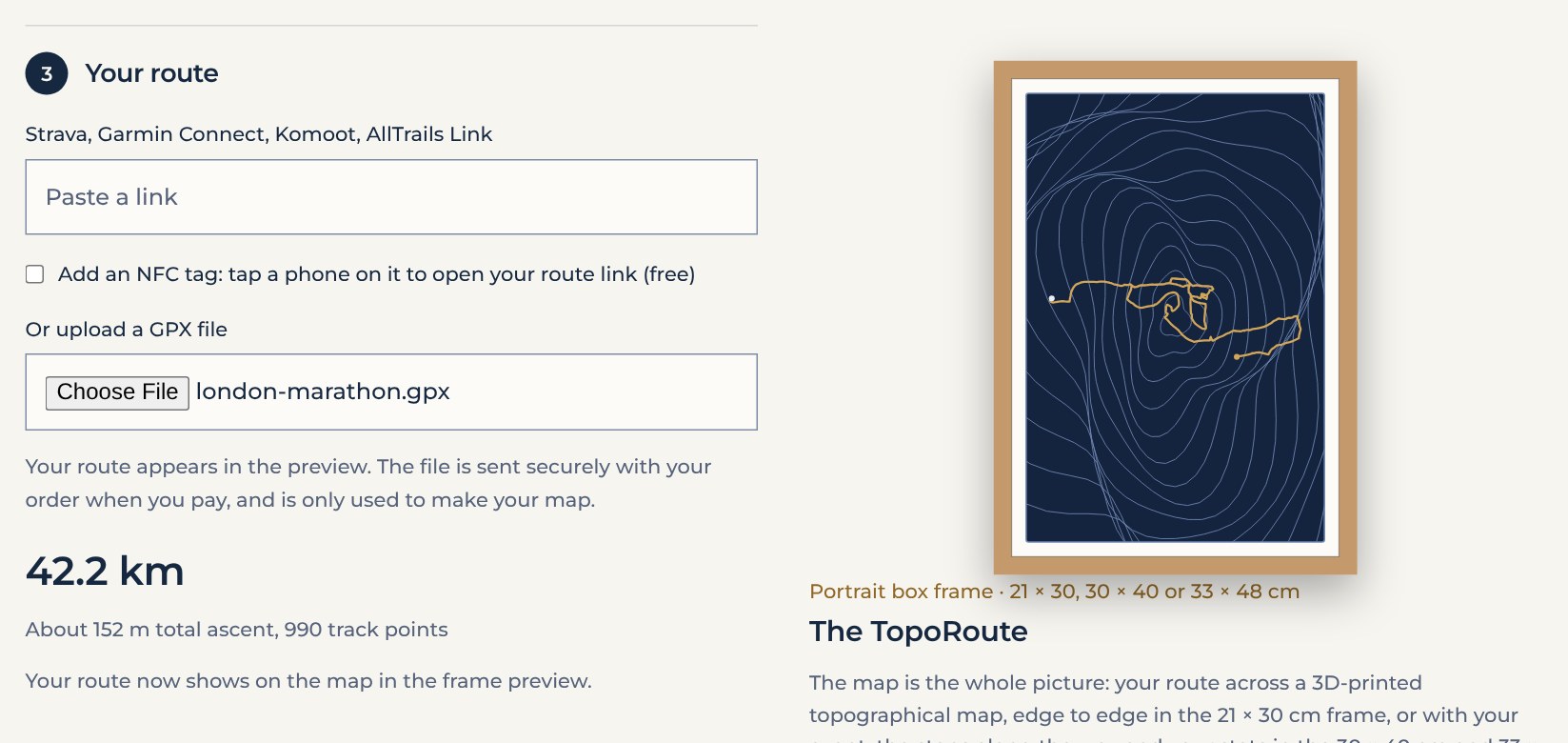
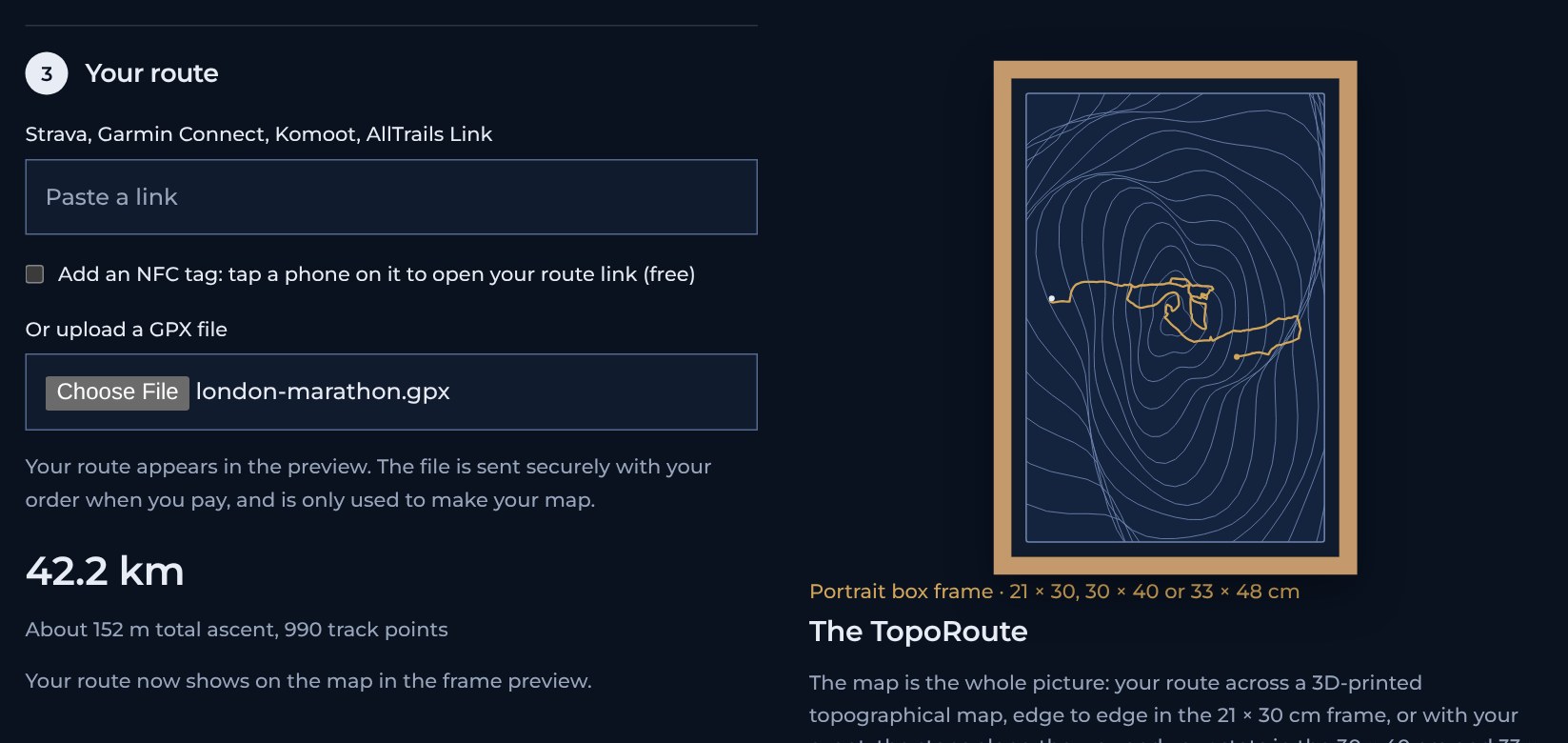
Choose The TopoRoute, then 21 × 30 cm, 30 × 40 cm or 33 × 48 cm. The 3D map fills the frame, and the two larger sizes add your event, stops and stats.
Or, for Map only or the Keyring
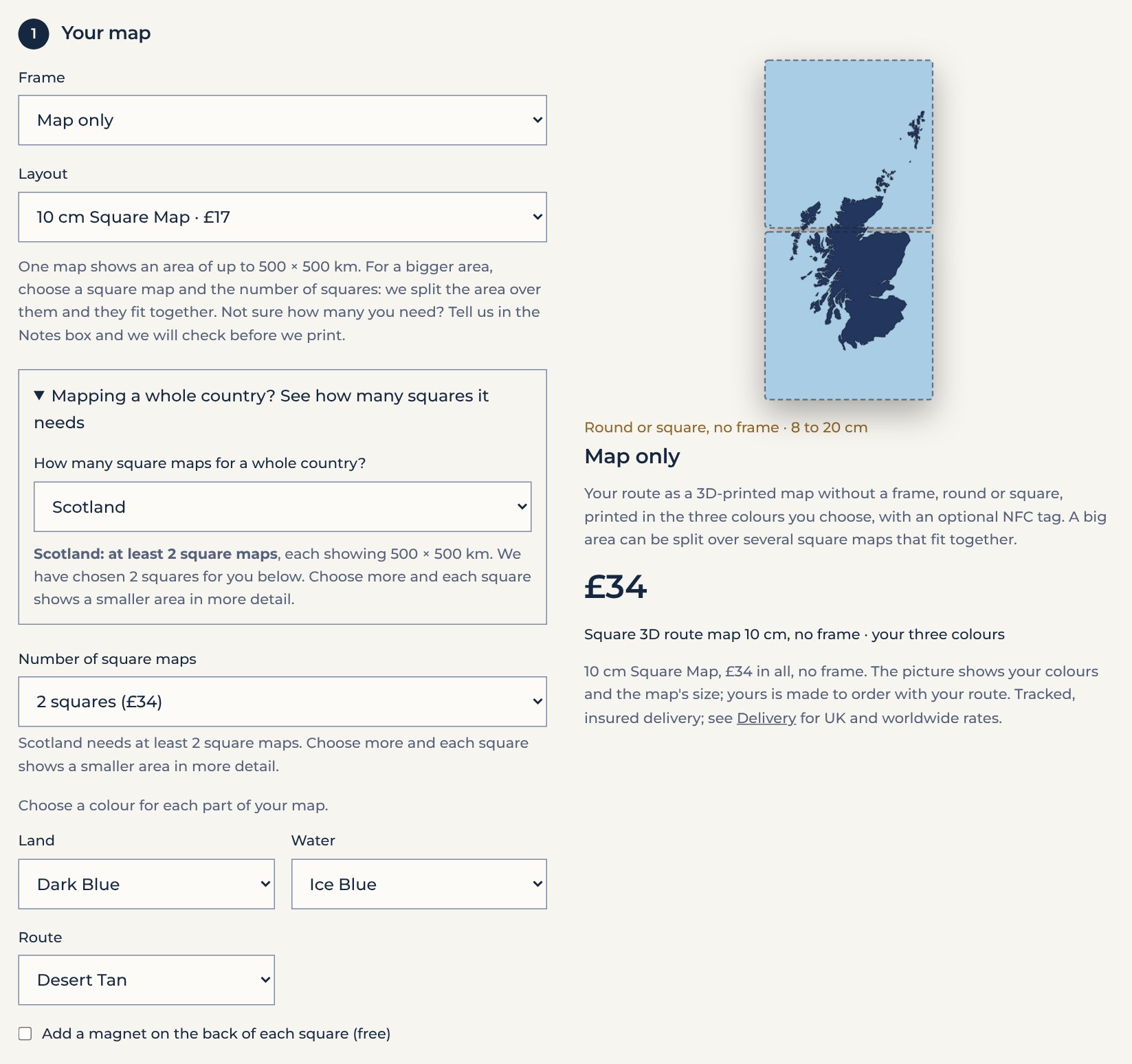
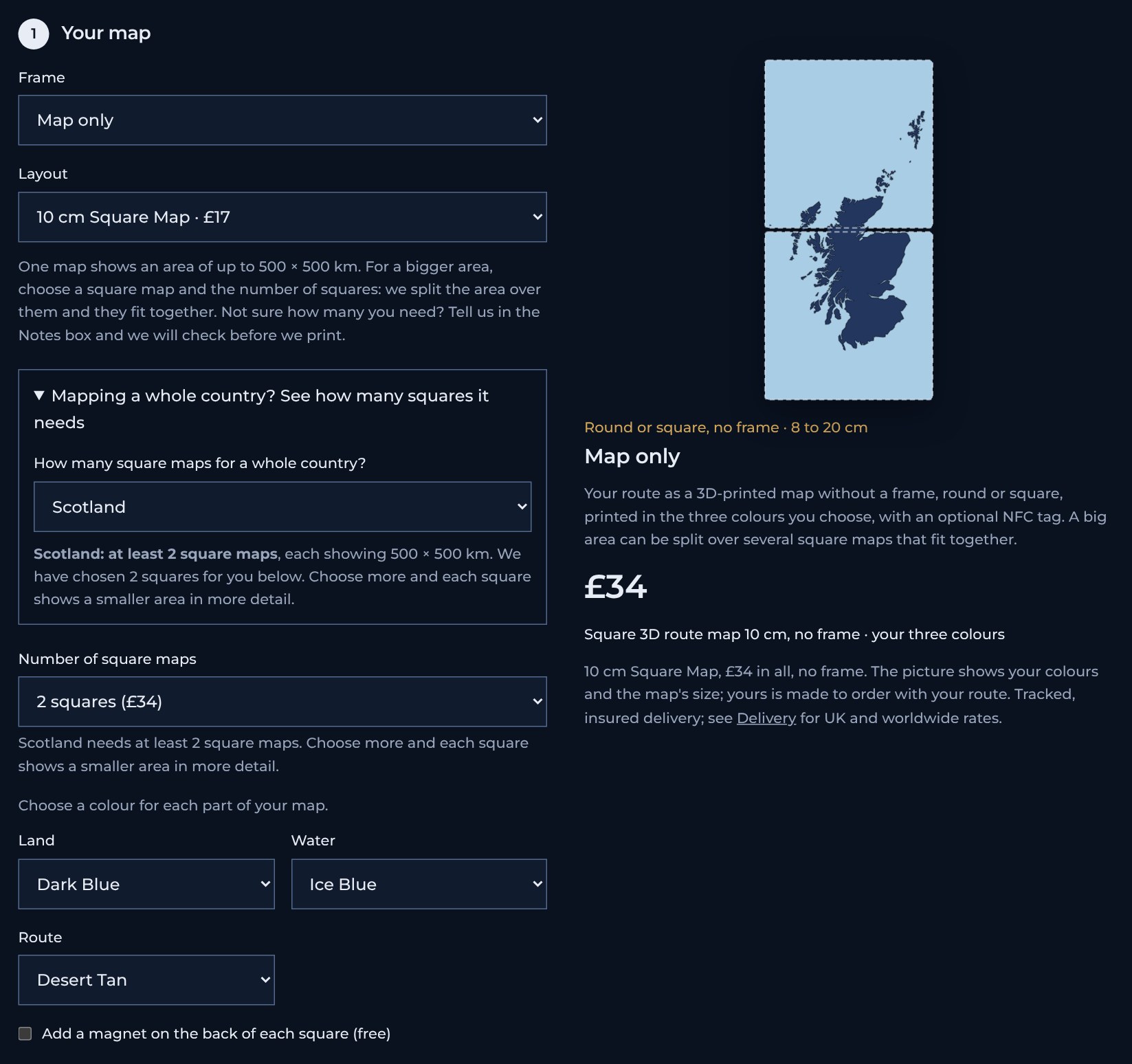
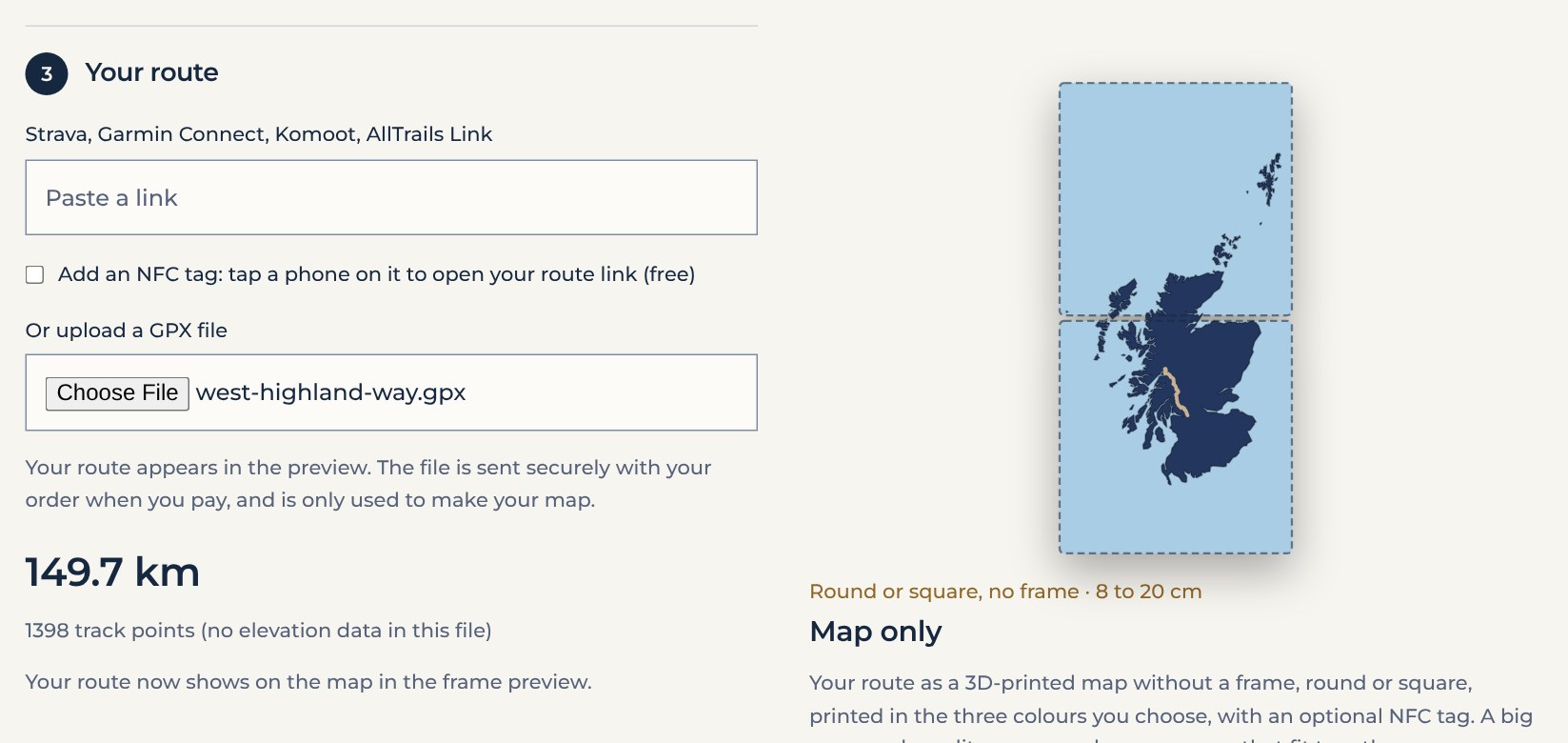
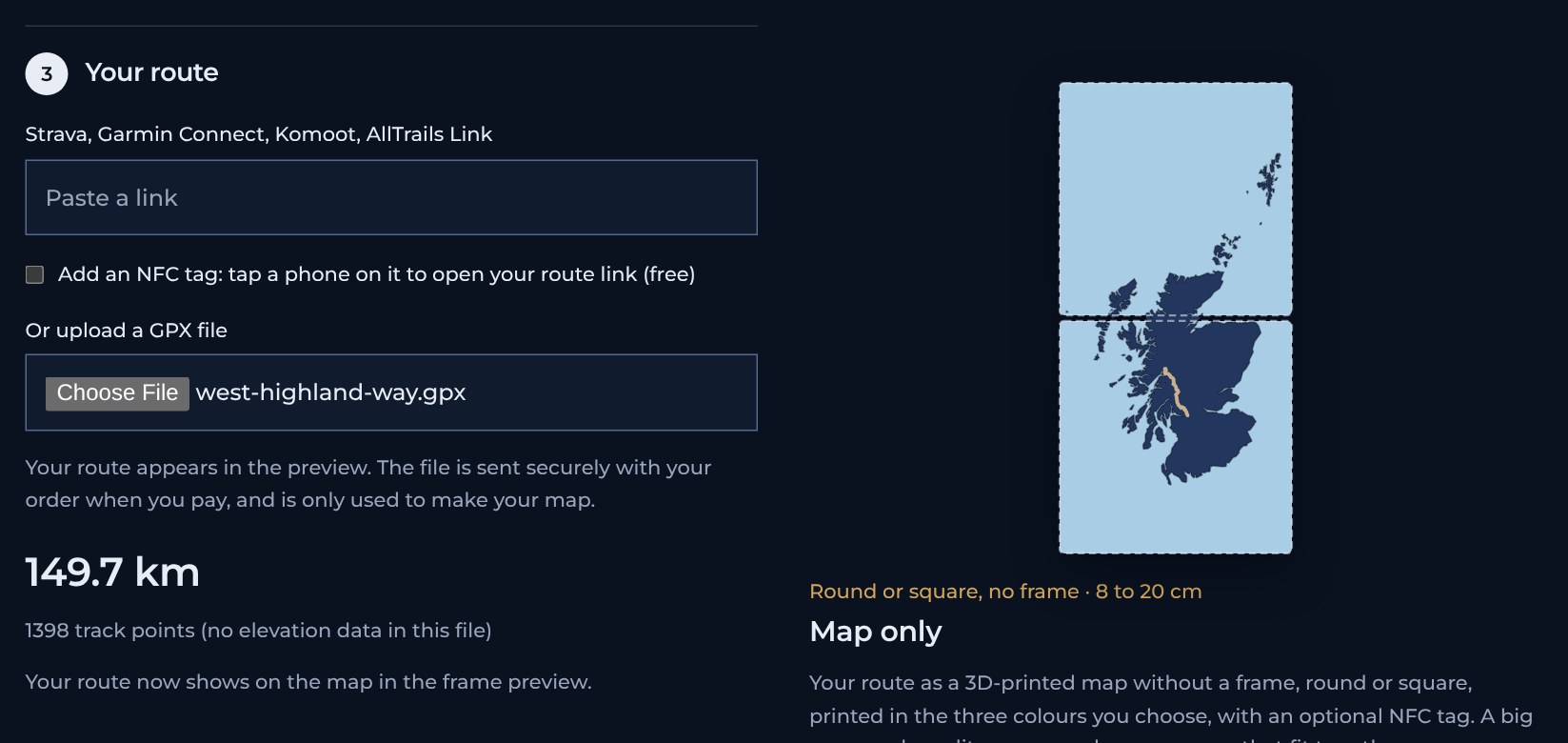
Choose Map only, then a round or square map from 8 to 20 cm, or choose the Keyring. There is no frame colour: instead you choose a colour for the land, the water and the route (the Keyring has two, the land and the route). One map shows an area of up to 250 × 250 km. For a bigger area, choose a square map and the number of squares, up to 25. To map a whole country, open "Mapping a whole country?" and choose it: the fewest squares it needs are chosen for you. The Map only and Keyring guide explains each choice.
Add your details
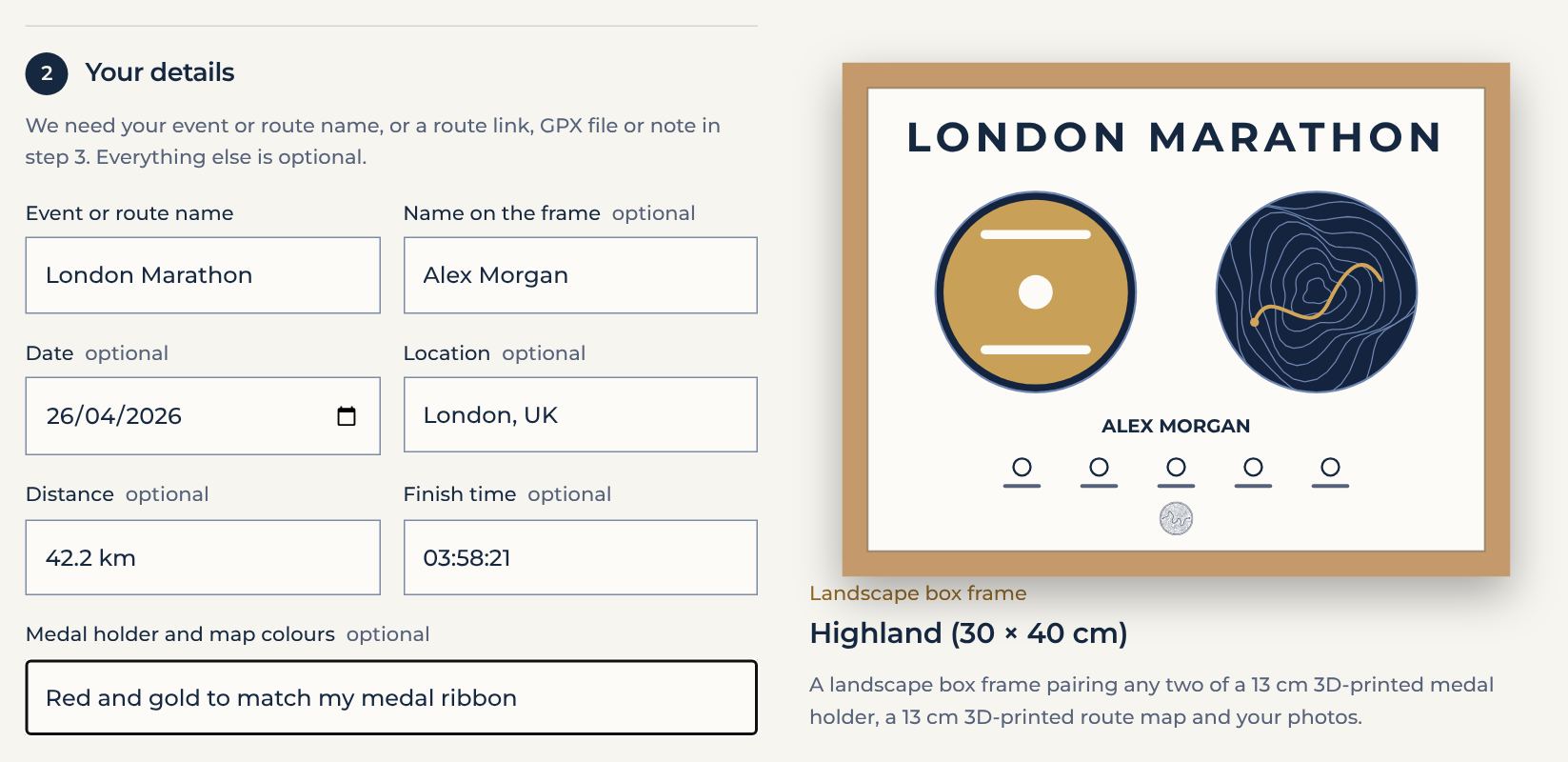
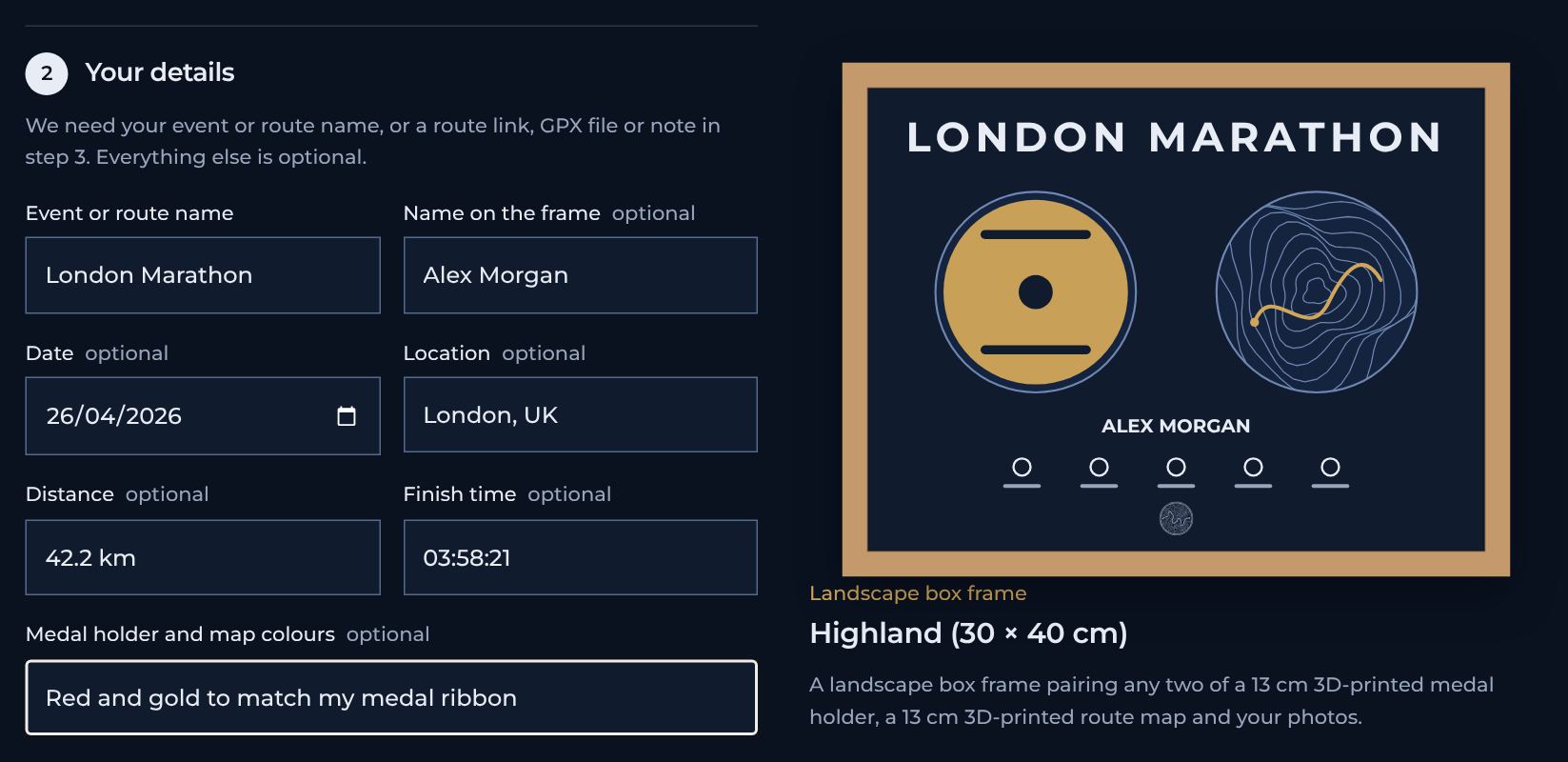
Enter the event or route name. Everything else is optional: the name to print on the frame, the date, the location, the distance and your finish time. To ask for particular colours, for example to match your medal ribbon, use the colours box. The picture updates as you type. For Map only and the Keyring, only the event or route name is asked for.
Send your route and photos
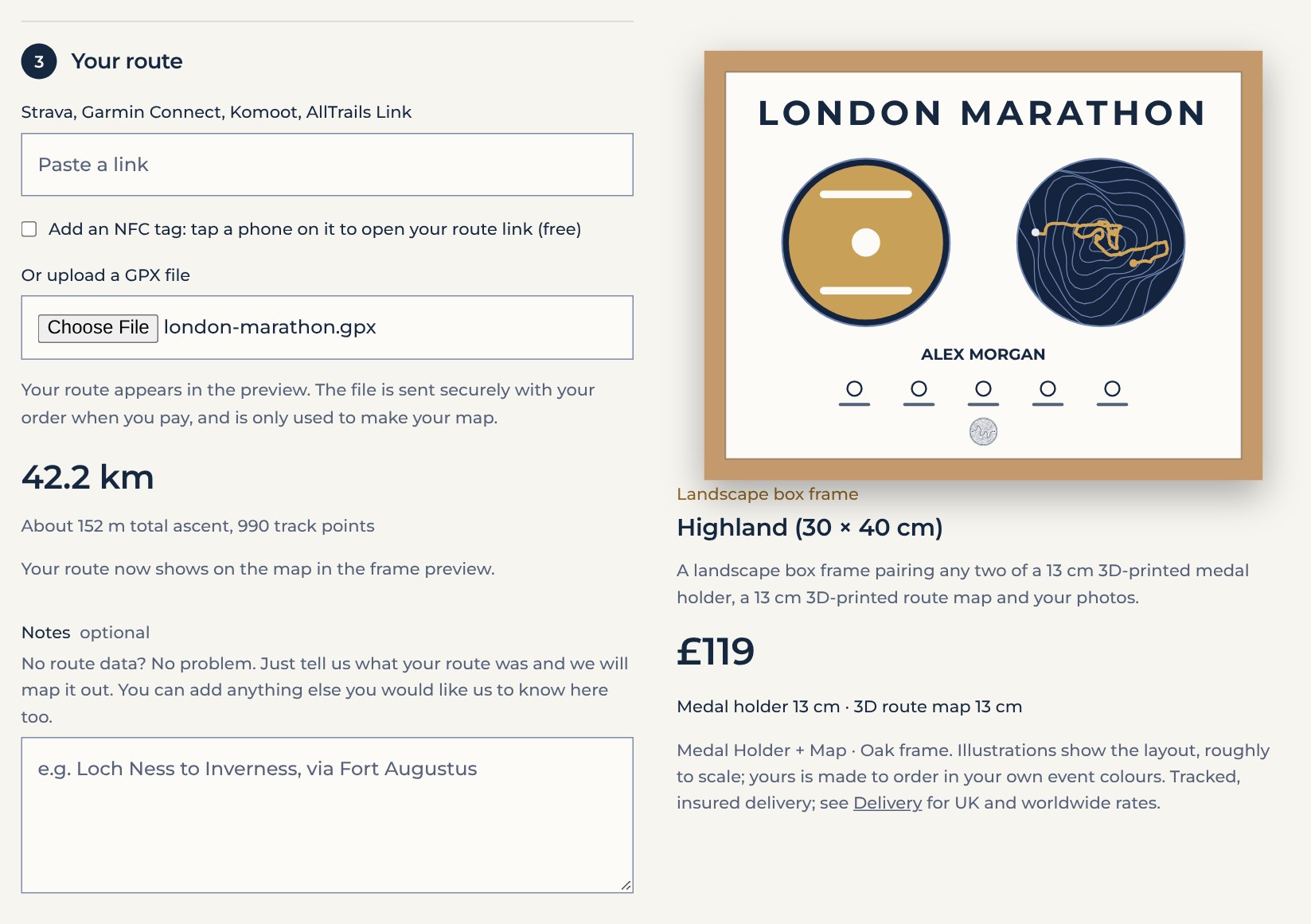
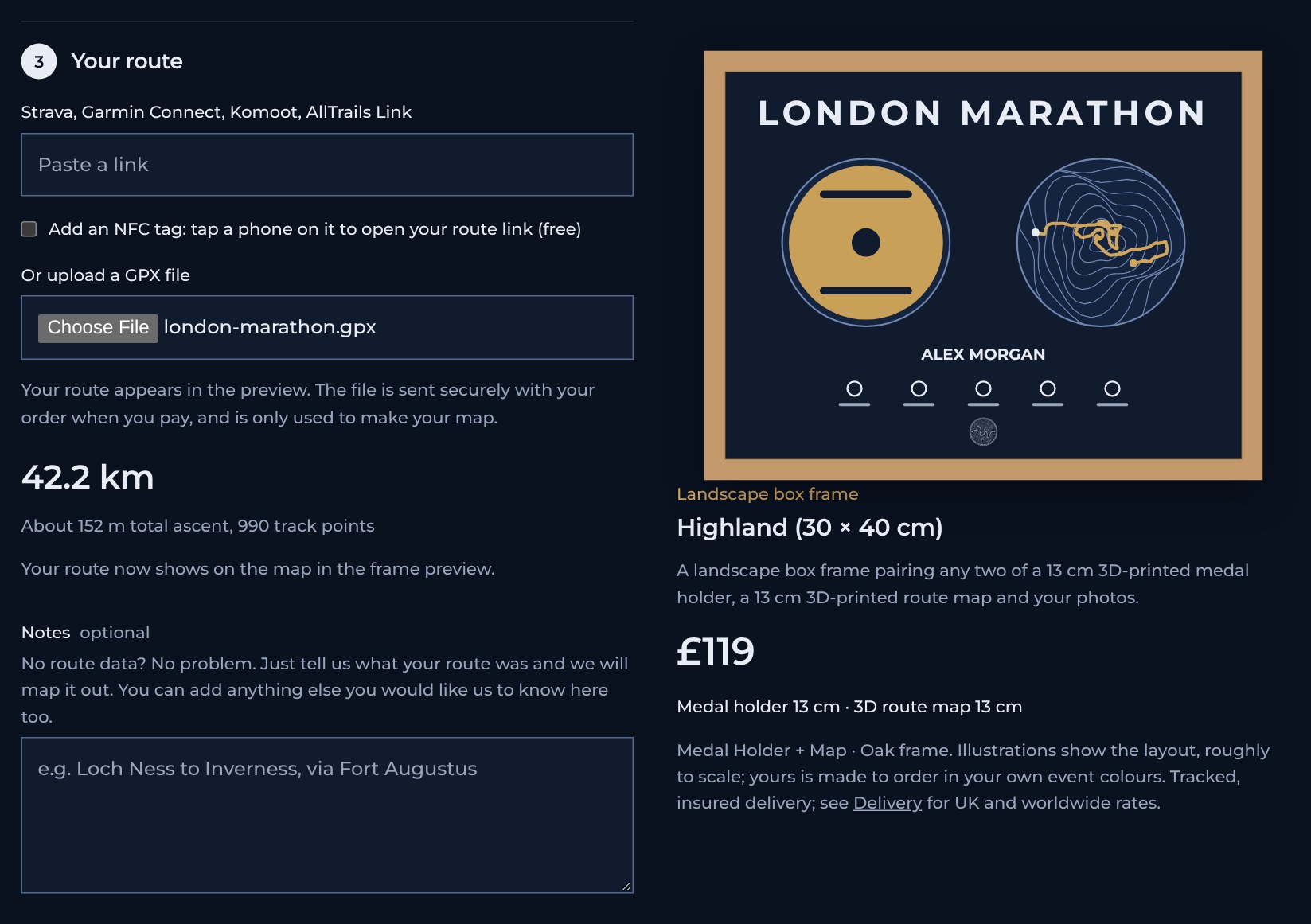
Paste a route link (Strava, Garmin Connect, Komoot, AllTrails, etc.), or upload a GPX file. Once the file is read, its distance is shown and your route appears on the map in the picture. If you did not record the route, describe it in the Notes box and we will map it. To have an NFC tag added, tick the NFC box under the link: tapping a phone on it opens your route link. It is free.
Or, for a multi-leg frame
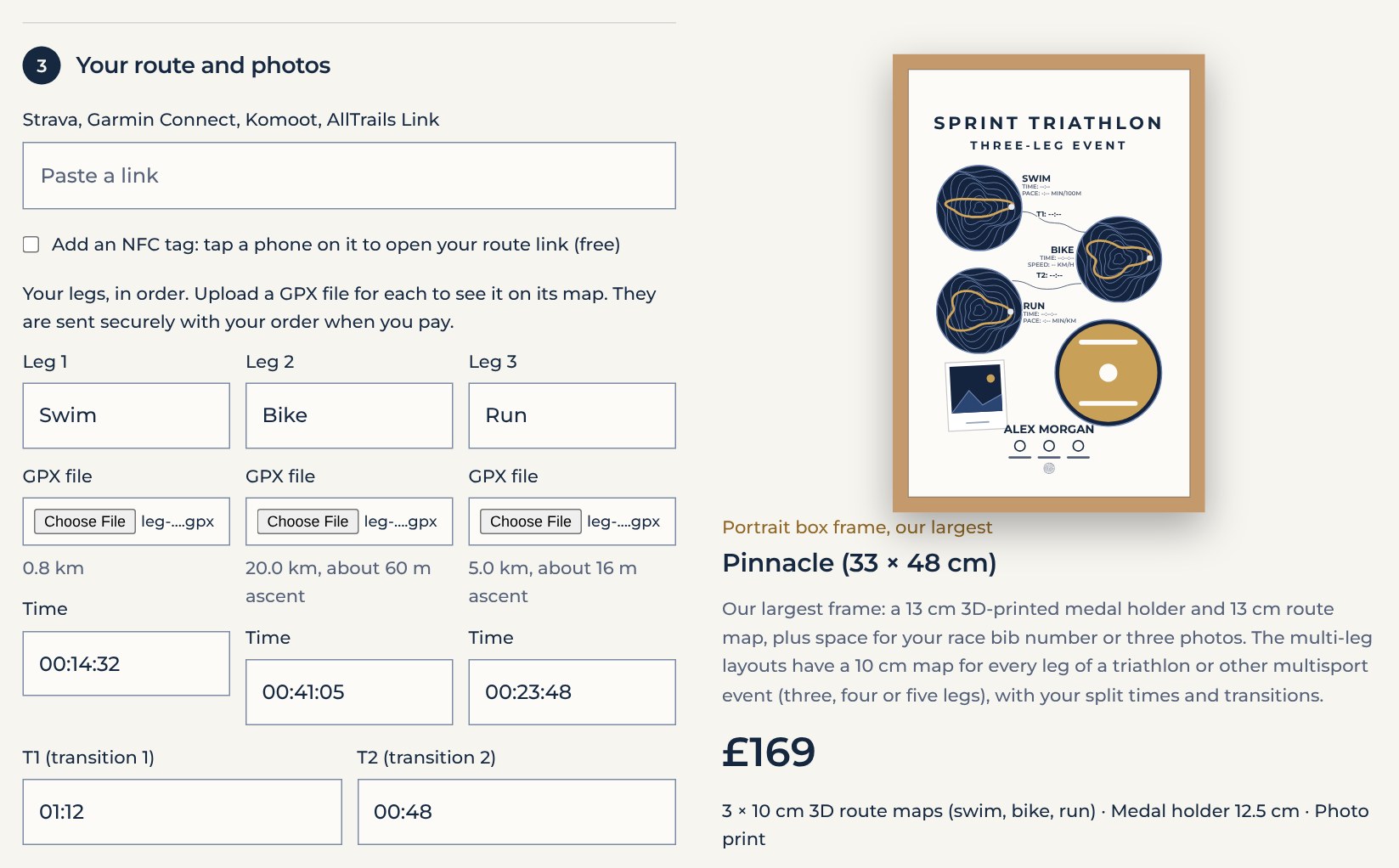
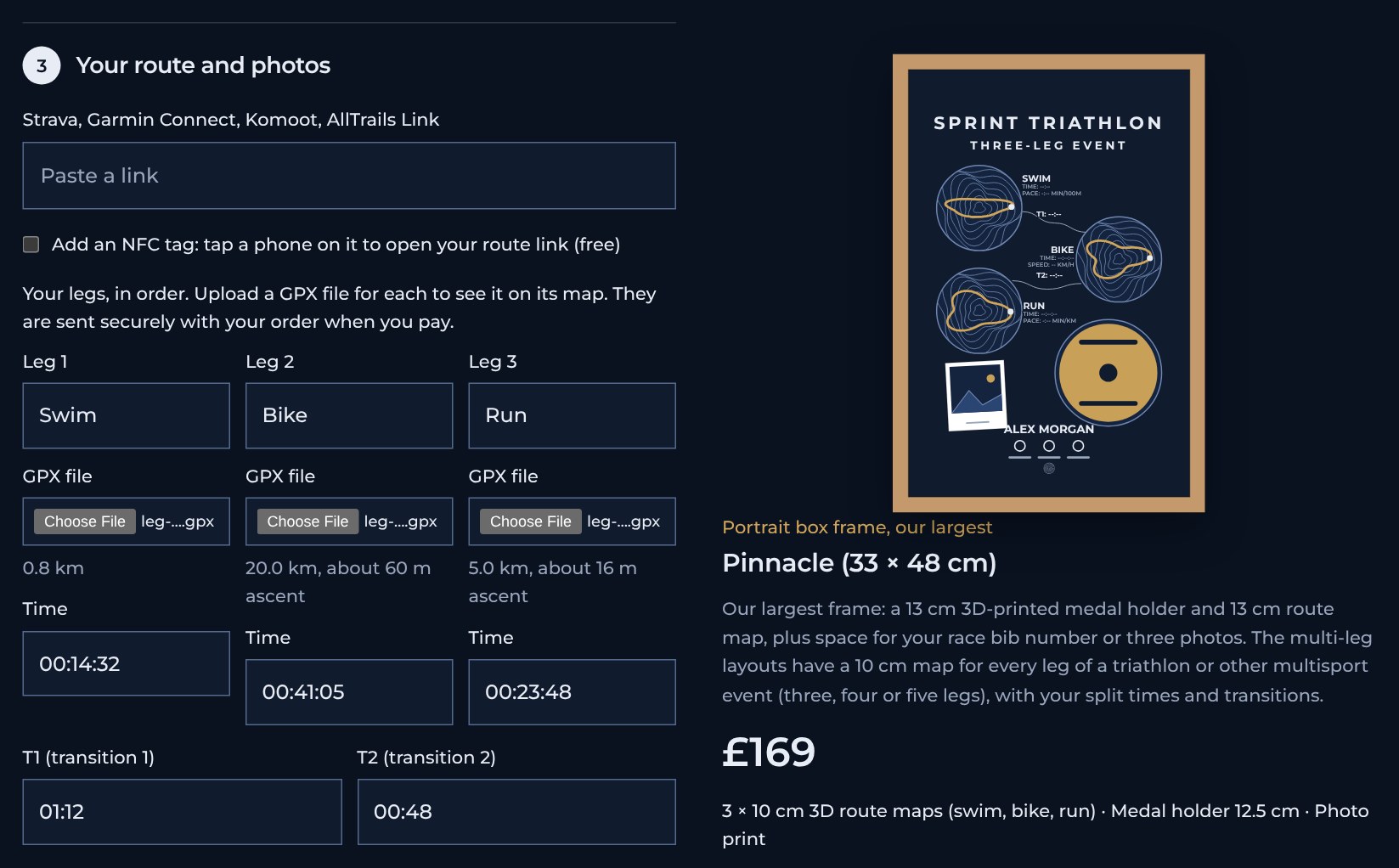
Name each leg in order, such as Swim, Bike and Run. Upload a GPX file for each leg and enter your time for each leg (hh:mm:ss). Then enter each transition time (mm:ss). The distance of each leg is shown once its file is read, and each route appears on its own map.
Or, for The Scenic
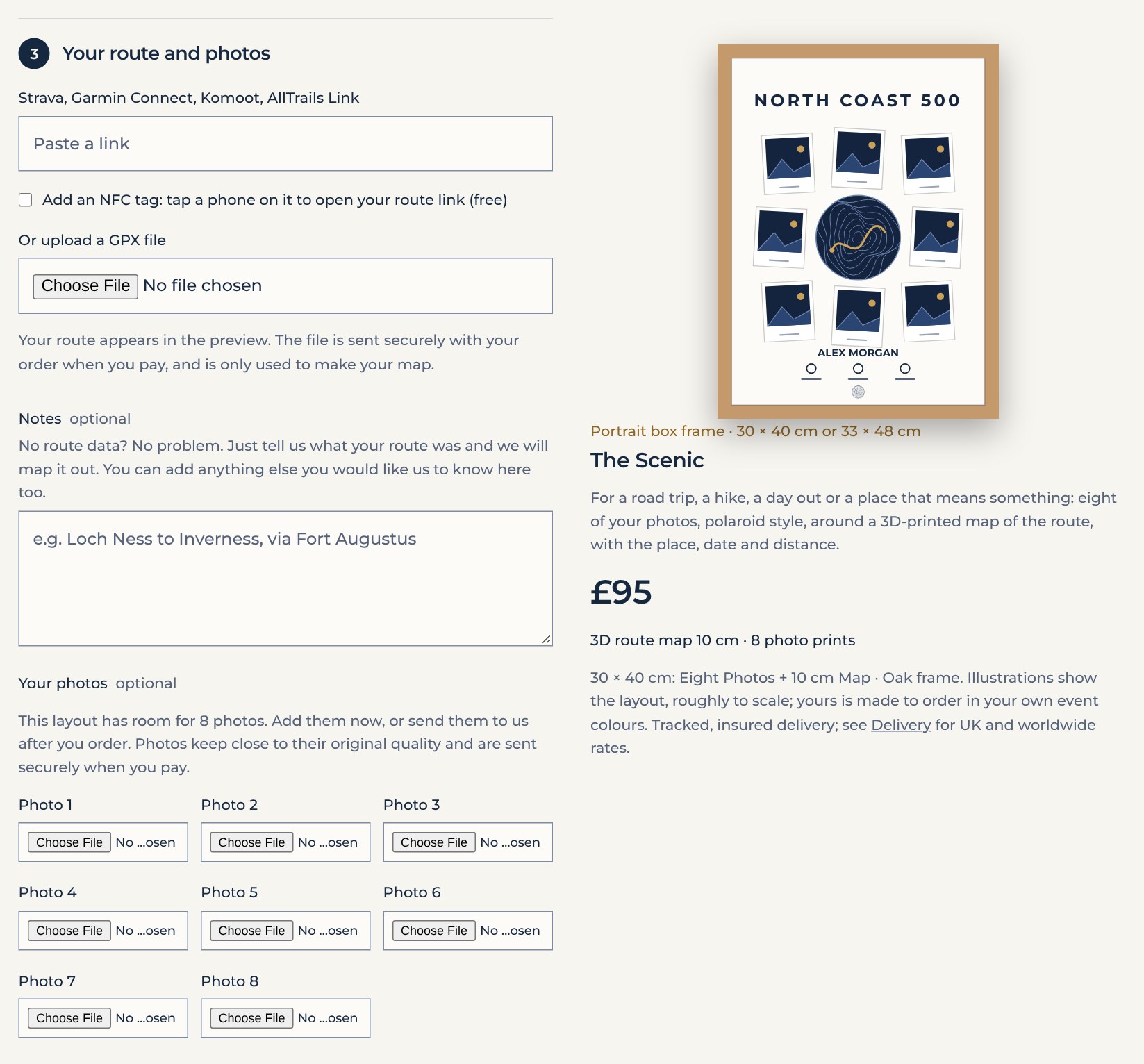
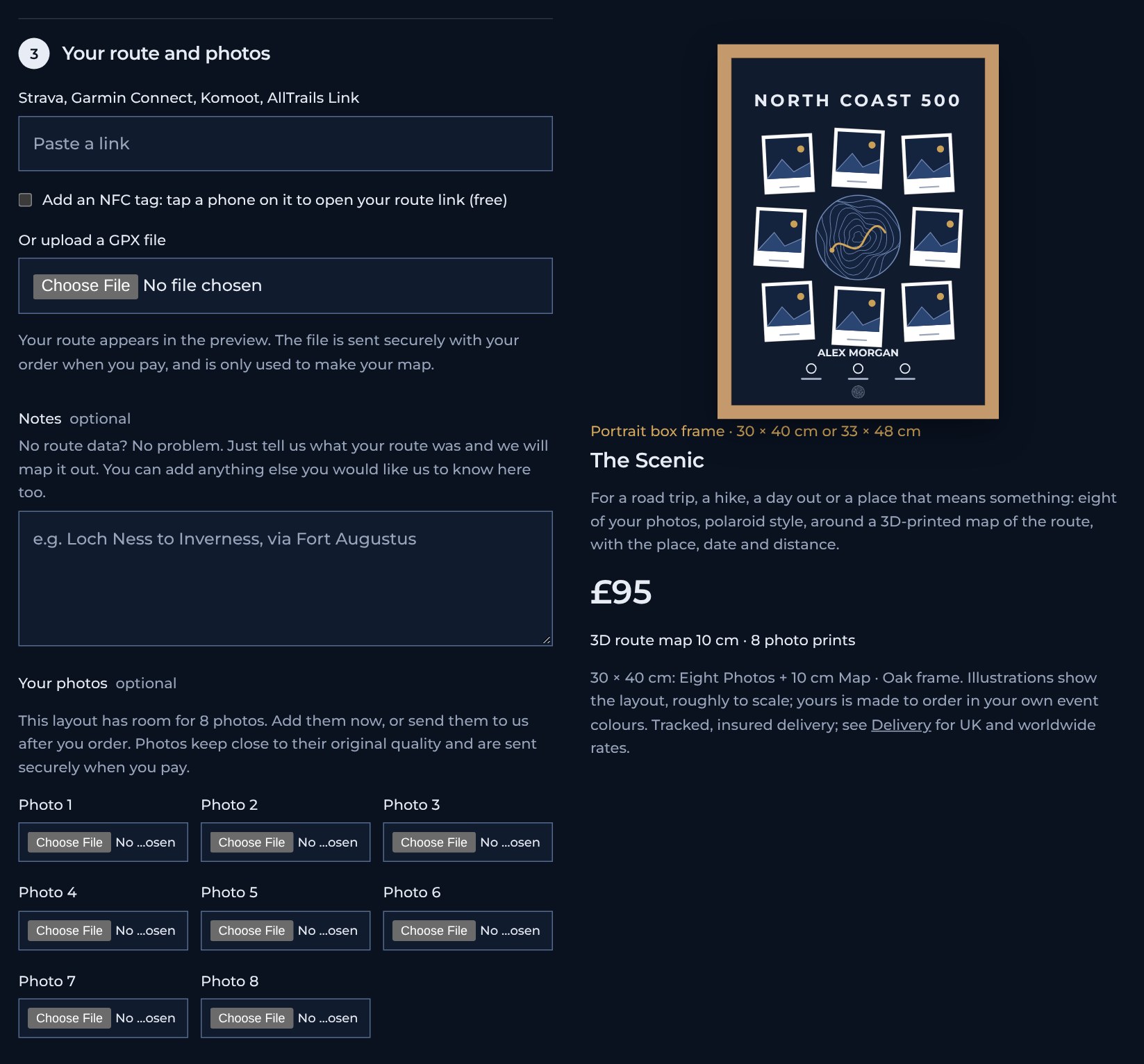
Send your route in the same way. Below it, there is a box for each of the eight photos. You can also leave the boxes empty and email the photos to us after you order.
Or, for The TopoRoute
Send your route in the same way. Once the file is read, your route replaces the example route on the map, which fills the frame.
Or, for Map only or the Keyring
Send your route in the same way. On Map only, an uploaded GPX file also finds the country your route is in and draws the route on it, so you can see how many squares the whole country needs. On the Keyring, the picture shows the land around your route.
Ask for a proof and add it to your bag
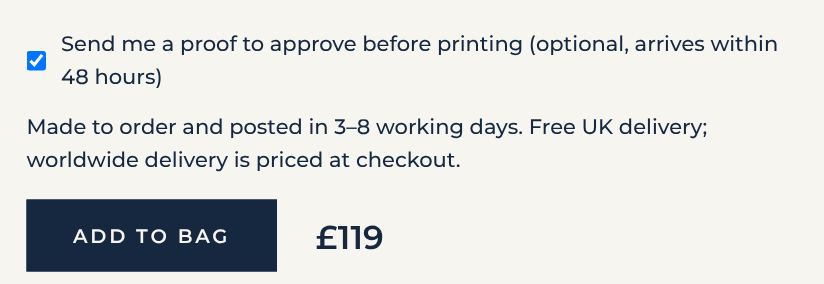
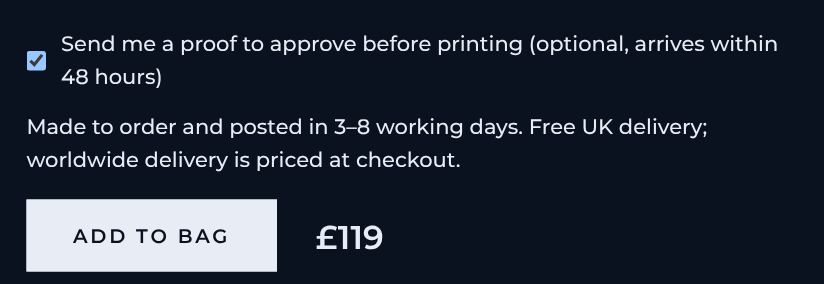
If you would like to see your design before we make it, tick the proof box. We will send you a picture within 48 hours and only start once you approve it. Then press Add to bag. The price beside the button is the price of your piece.
Check your bag and go to the checkout
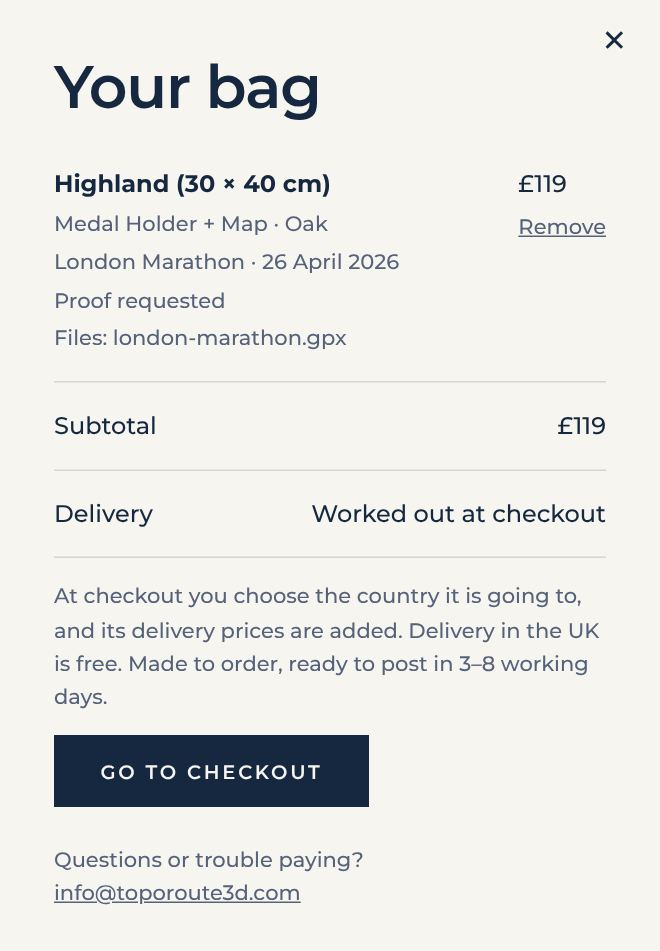
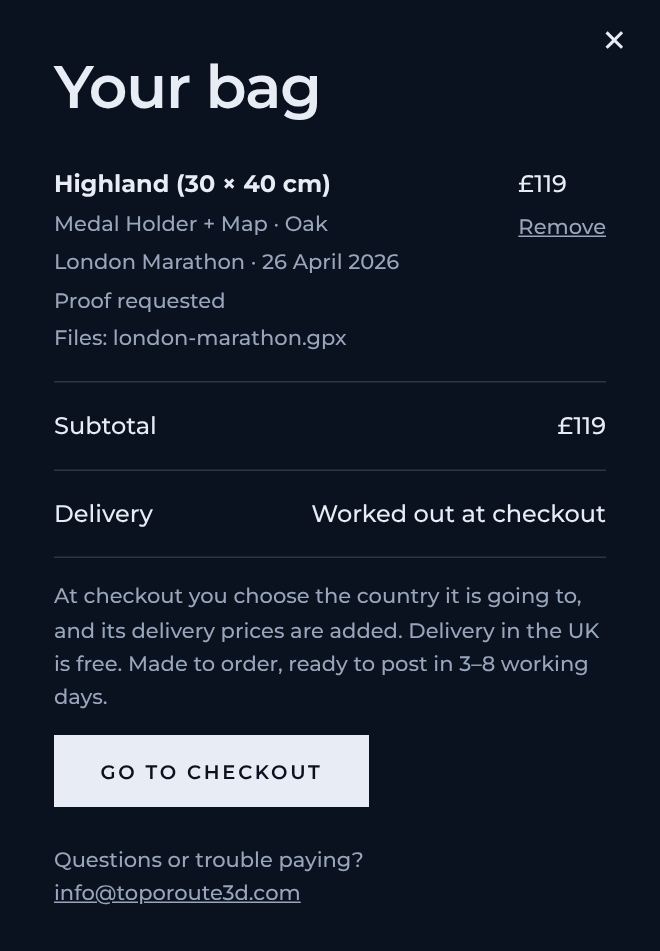
Your bag opens and lists each piece with its details and files. You can remove a piece here, or close the bag and create another. When you are ready, press Go to checkout.
Enter your contact and delivery details
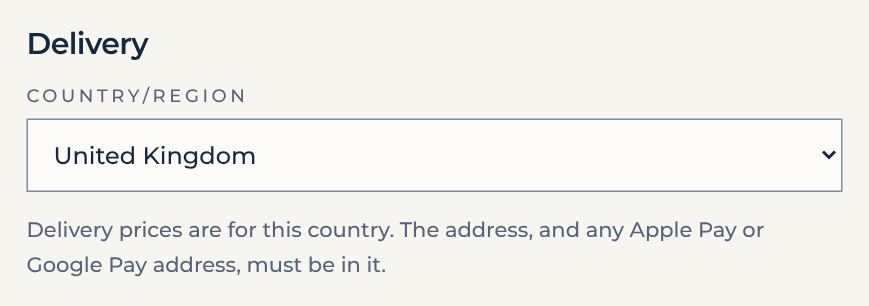
Enter your email address, choose the country your order is going to, then enter the delivery address. Delivery prices depend on the country, and the address must be in it, including an address you pick in Apple Pay or Google Pay.
Choose your delivery and pay
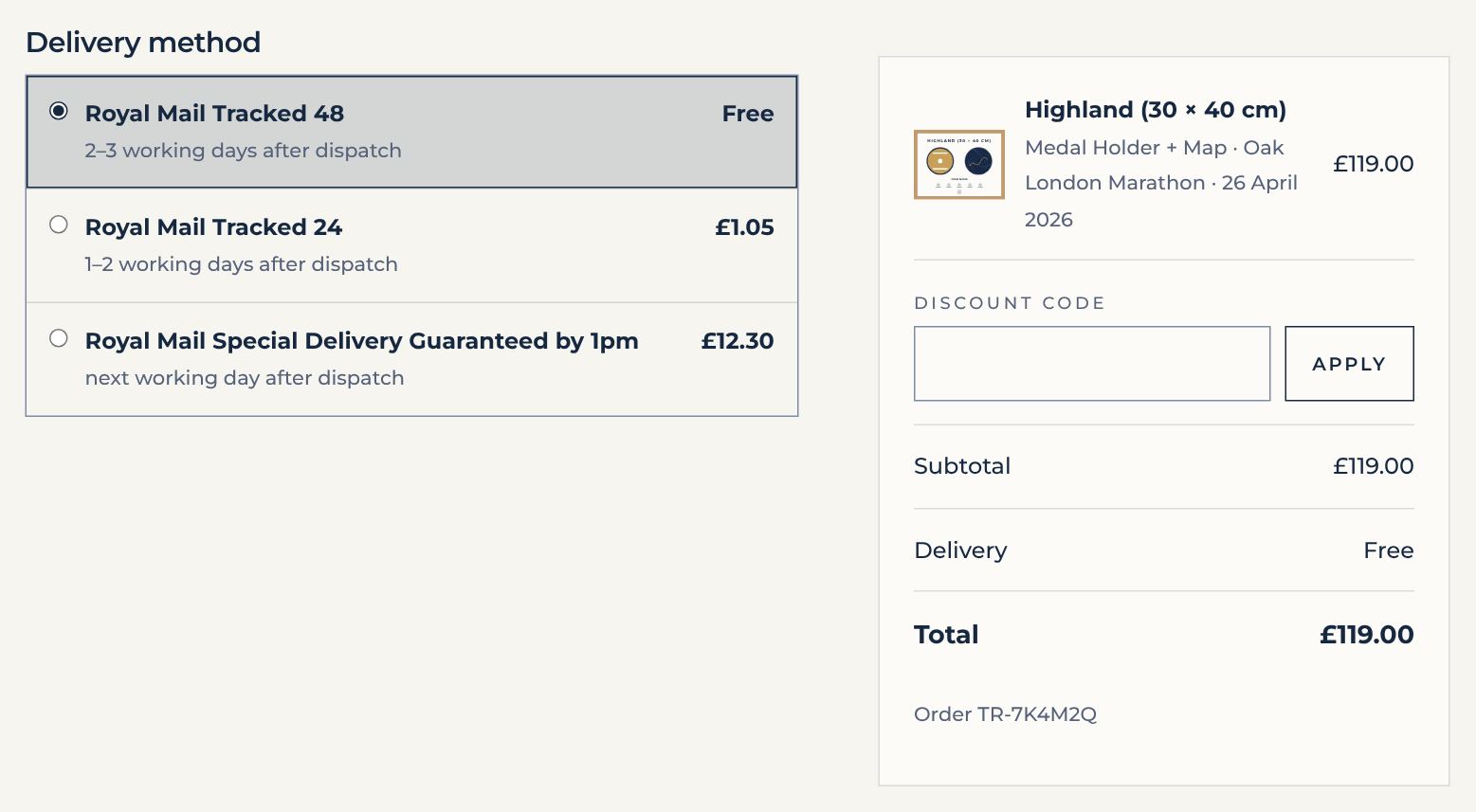
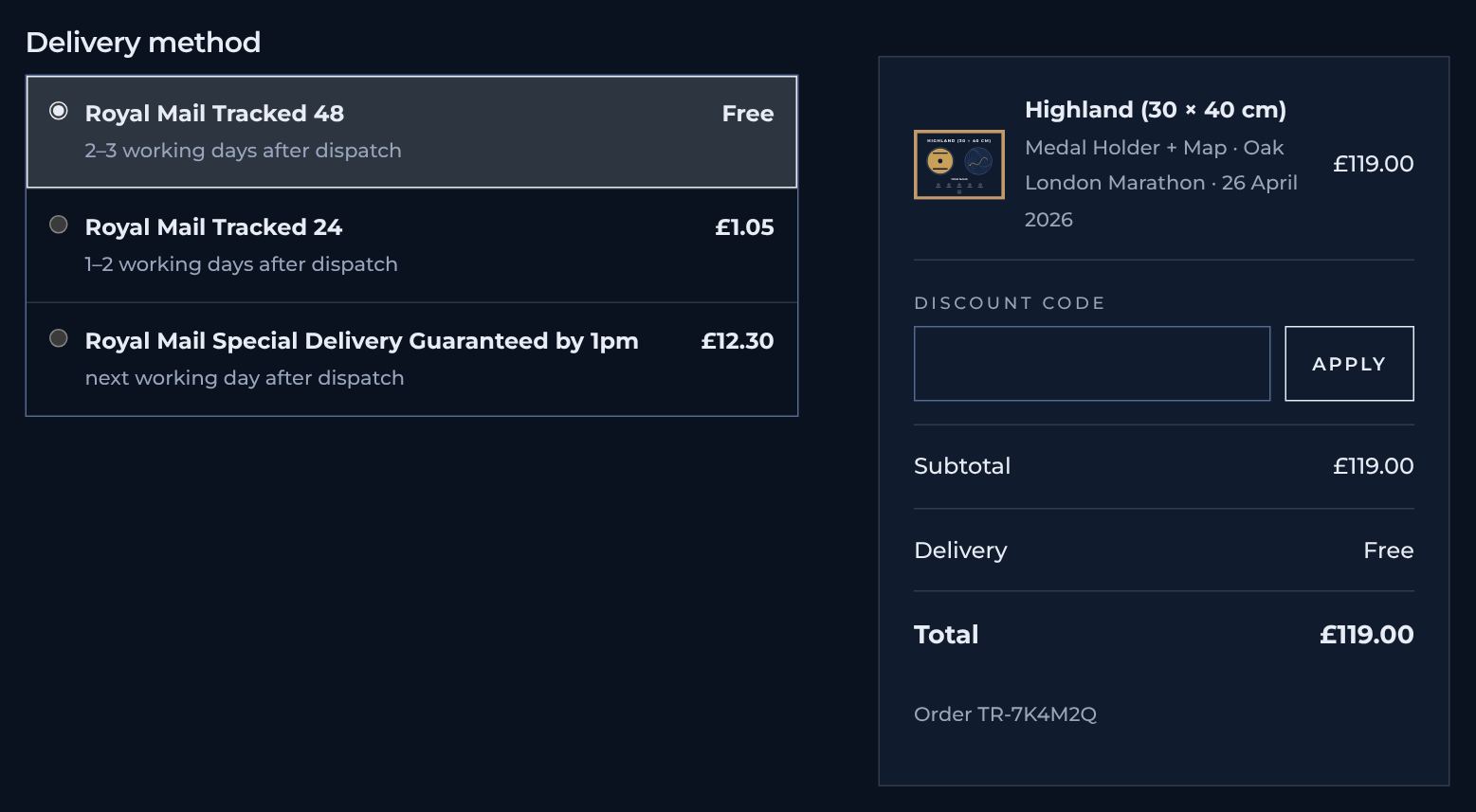
Choose a delivery method. Standard UK delivery is free, and the faster services are shown with their prices. The order summary beside the form shows the total. If you have a discount code, enter it in the Discount code box and press Apply. Pay by card, or with Apple Pay, Google Pay or another quick-pay button where your device offers one, then press Pay now. Stripe handles the payment securely, and your card details never reach us.
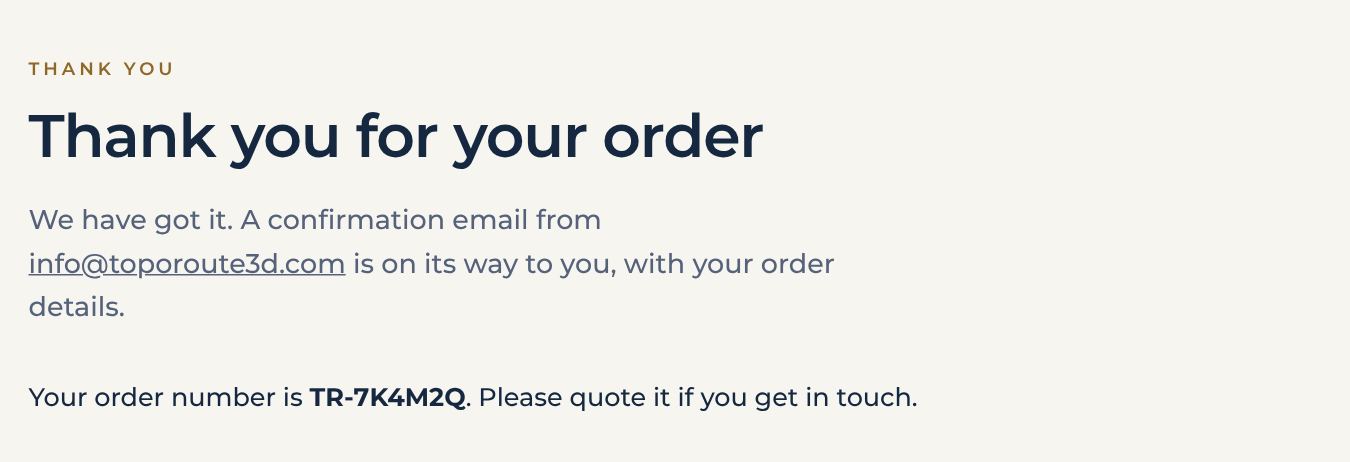
Your confirmation
The thank-you page shows your order number. We then email you a confirmation with your order details, and Stripe sends you a receipt. We make your piece in 3–8 working days and post it tracked and insured.